WhatsApp Web lets you send and receive WhatsApp messages from your desktop or laptop browser. For UK freelancers and small business owners, it is a practical way to reply to clients, share files, and manage group chats while working at a computer. It is free, works on most browsers, and takes under a minute to set up.
In this 2026 guide, we explain how to use WhatsApp Web, how it compares to the WhatsApp Desktop app and WhatsApp Business, and what UK founders should know about privacy and security.
What is WhatsApp Web?
WhatsApp Web is the browser-based version of WhatsApp. You open https://web.whatsapp.com in a web browser and link it to your phone by scanning a QR code. Once connected, your messages, contacts, and group chats appear on your computer screen.
It is not a separate account. It uses the same phone number as your mobile app. Your phone must stay connected to the internet unless you have enabled WhatsApp’s multi-device mode, which lets linked devices work even when your phone is offline.
Who should use WhatsApp Web?
WhatsApp Web is useful if you:
- Reply to client messages during the working day.
- Prefer typing on a full-sized keyboard.
- Send documents, images, or invoices from your computer.
- Manage a small number of business conversations without needing a full CRM.
It is less suitable if you need voice or video calls, automated replies, or a dedicated business number. In those cases, WhatsApp Business or WhatsApp Desktop is a better choice.
How to set up WhatsApp Web: step by step
Step 1: Open WhatsApp Web in your browser
On your computer, open a supported browser and go to https://web.whatsapp.com. A QR code will appear in the centre of the page.
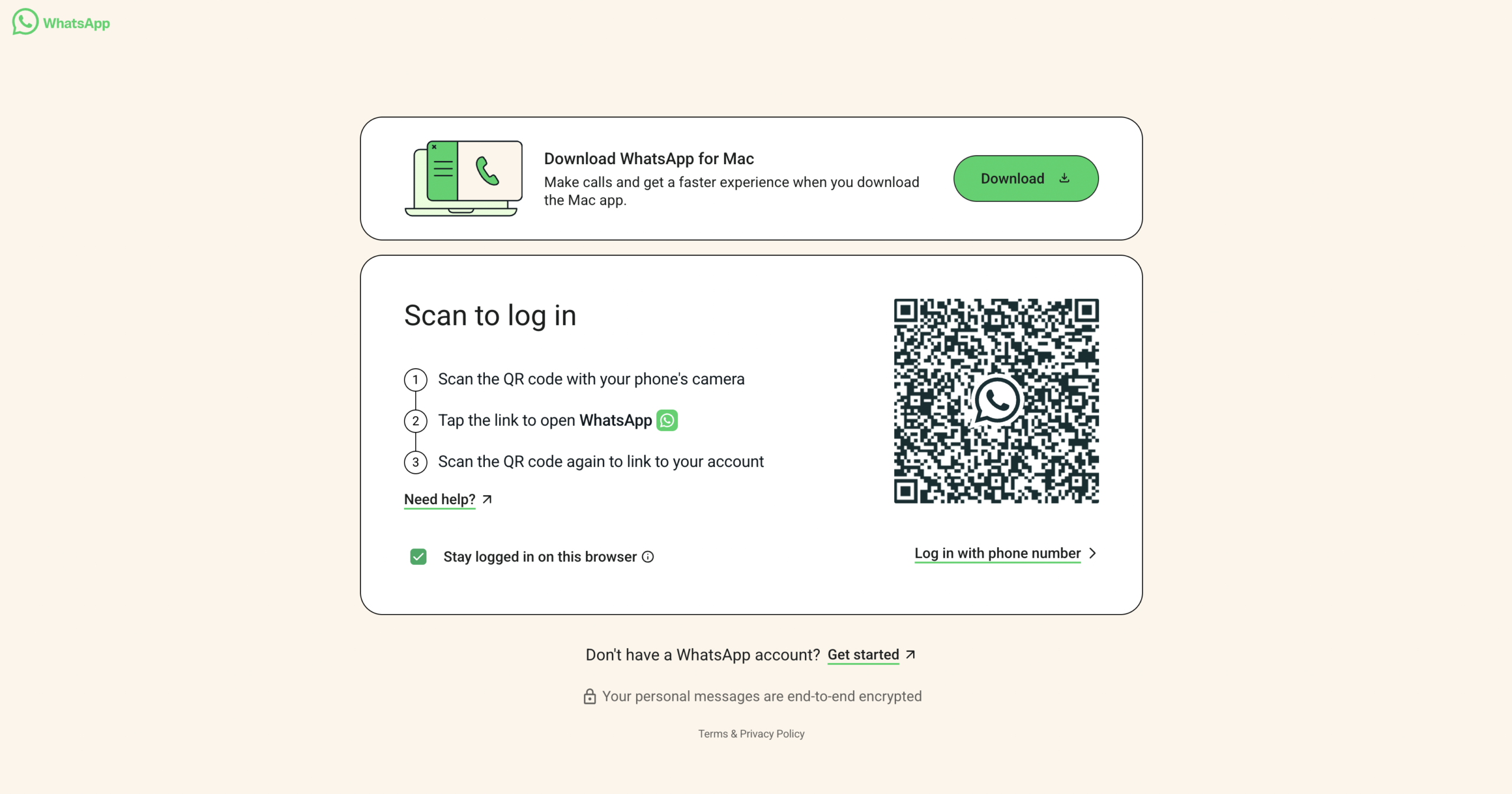
Supported browsers include Google Chrome, Microsoft Edge, Mozilla Firefox, Opera, and Safari on macOS 10.15 and newer. Internet Explorer is not supported.
Step 2: Open WhatsApp on your phone
Open the WhatsApp app on your smartphone. Keep it open while you complete the next step.
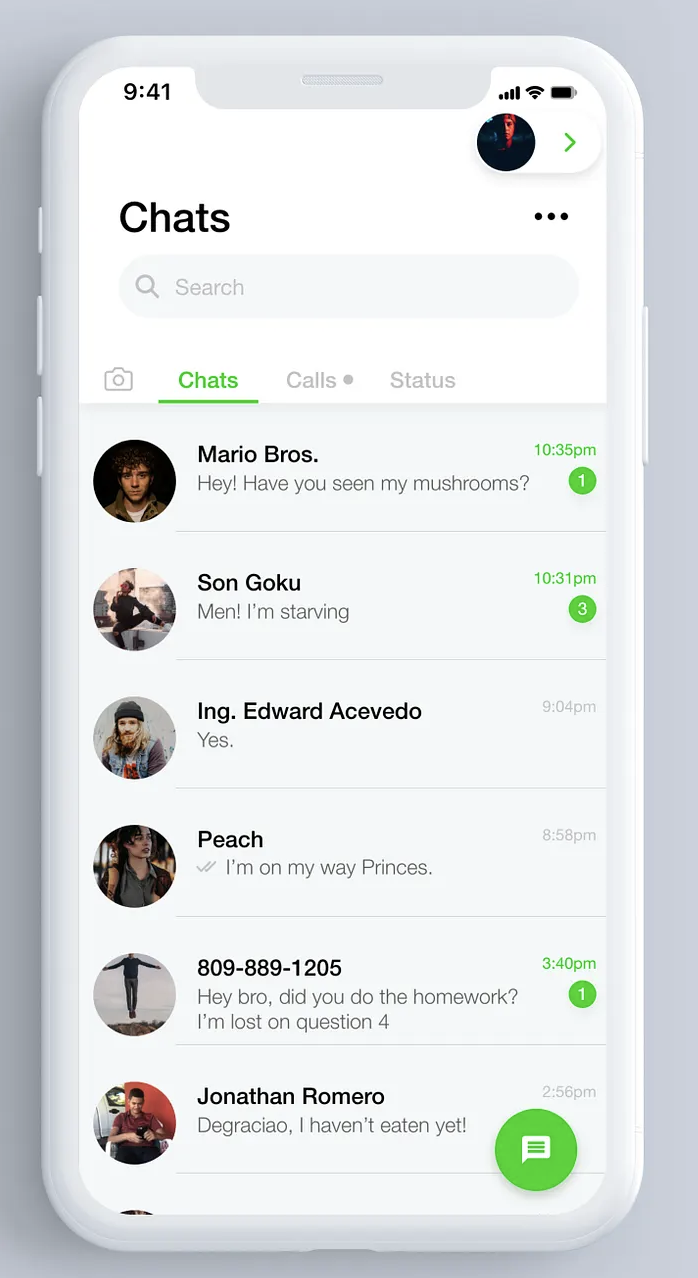
Step 3: Go to Linked Devices
On Android: Tap the three-dot menu in the top-right corner, then tap Linked devices.
On iPhone: Tap Settings in the bottom-right corner, then tap Linked devices.
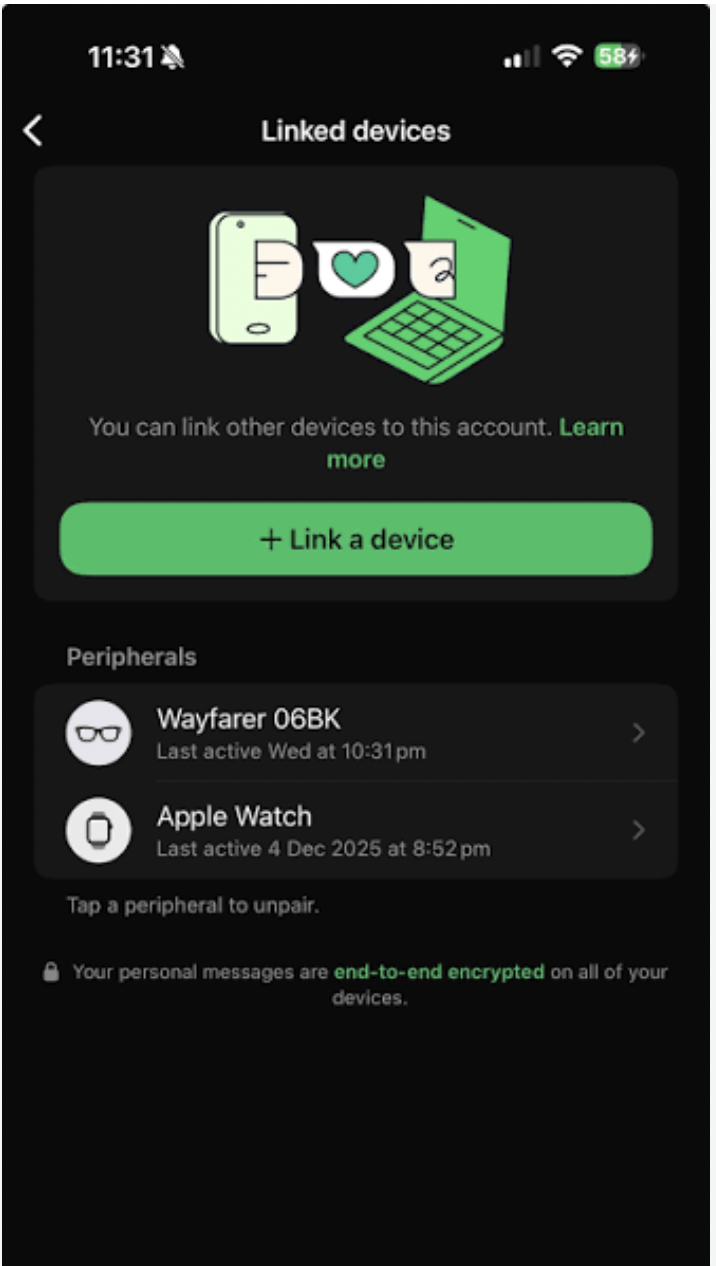
Step 4: Scan the QR code
Tap Link a device. You may be asked to unlock your phone with a passcode, Face ID, or fingerprint. Hold your phone’s camera over the QR code on your computer screen.
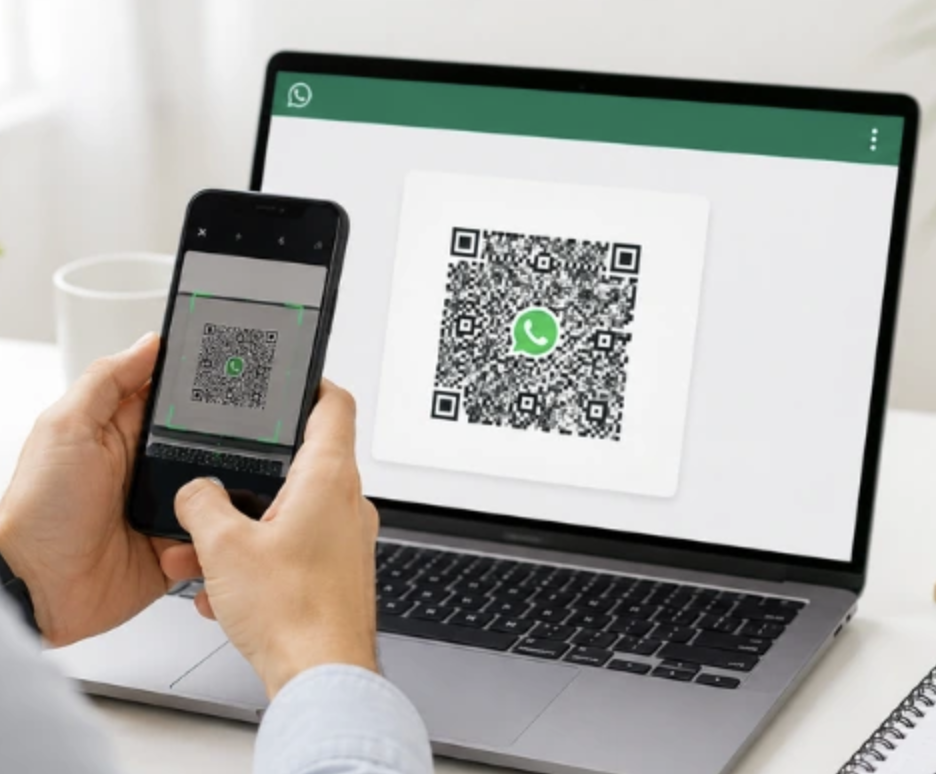
Step 5: Start messaging
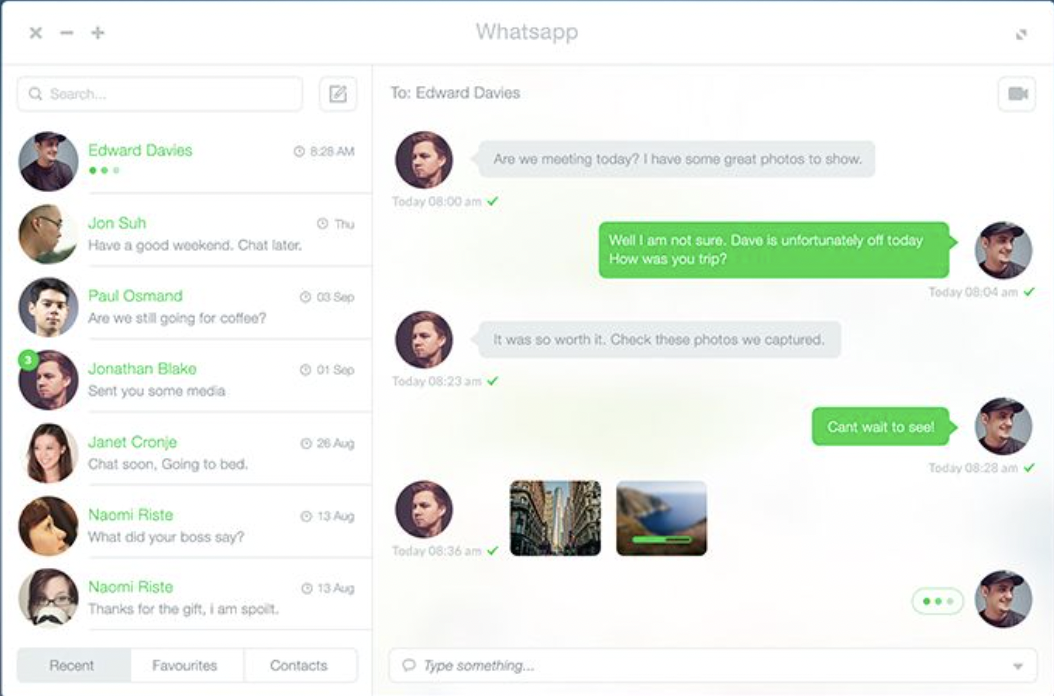
Once the QR code is scanned, your chats will load in the browser. You can now send messages, share files, and reply to conversations from your computer.
WhatsApp Web vs Desktop vs Business: which one do you need?
| Feature | WhatsApp Web | WhatsApp Desktop | WhatsApp Business |
|---|---|---|---|
| How it runs | In a web browser | Installed app for Windows or macOS | Separate mobile app with web/desktop access |
| Text messaging | Yes | Yes | Yes |
| Voice and video calls | No | Yes | Yes |
| Business profile | No | No | Yes |
| Quick replies and labels | No | No | Yes |
| Best for | Personal use and light client messaging | Regular desktop users who want calls | Founders and businesses handling customer chats |
Quick decision: which WhatsApp should you use?
- You mainly chat and share files from a computer: use WhatsApp Web.
- You want voice/video calls on desktop: use WhatsApp Desktop.
- You run a business and want quick replies, labels, and a business profile: use WhatsApp Business.
What UK founders say about WhatsApp Web
“I use WhatsApp Web every day to reply to clients while I am working on invoices and proposals. It saves me picking up my phone every two minutes. The only thing I wish it had was the business features, so I am planning to switch to WhatsApp Business later this year.”
— Freelance marketing consultant, London
Is WhatsApp Web safe for business?
WhatsApp Web uses the same end-to-end encryption as the mobile app. Messages are private between sender and receiver. However, there are three practical risks for business users:
- Shared computers: Always log out of WhatsApp Web on shared or public devices. Someone else using the same computer could read your messages.
- Unrecognised devices: Check your Linked devices list regularly. Remove any device you do not recognise.
- Business data: Avoid sharing sensitive client information in group chats or on devices that are not secured. For regulated sectors, consider whether WhatsApp meets your record-keeping requirements.
Under UK data protection law, including the UK GDPR and Data Protection Act 2018, businesses should only process personal data in ways that are lawful, secure, and transparent. If you use WhatsApp for client communication, make sure your privacy notice covers this and that you are not storing personal data longer than necessary.
Tips for using WhatsApp Web as a founder
- Use keyboard shortcuts: Press Ctrl + N (Windows) or Cmd + N (Mac) to start a new chat, and Ctrl + E or Cmd + E to archive a conversation.
- Drag and drop files: You can send documents, images, and PDFs by dragging them into a chat window.
- Pin important chats: Right-click a chat and select Pin to keep key clients or suppliers at the top.
- Mute groups: Right-click a group and select Mute notifications to reduce distraction during focused work.
- Log out remotely: If you leave a session open on another computer, go to Linked devices on your phone and remove it.
Frequently asked questions
How long does WhatsApp Web stay logged in?
WhatsApp Web stays active as long as your phone has an internet connection and you do not manually log out. You can log out from the browser or from your phone under Linked devices.
Can I use WhatsApp Web without my phone?
No. WhatsApp Web needs your phone to be online. The WhatsApp Desktop app can work for a limited time without your phone if multi-device mode is enabled, but you still need a phone for setup.
Why is WhatsApp Web not loading?
Check that your phone has an internet connection, your browser is up to date, and you are using a supported browser. Try refreshing the page or scanning the QR code again.
Does WhatsApp Web work on iPad?
There is no dedicated WhatsApp app for iPad. You can open web.whatsapp.com in Safari and request the desktop version of the site.
Is WhatsApp Web the same in the UK?
Yes, the features are the same. For business users, UK data protection rules apply to any client information you handle through the platform.
Can I have WhatsApp Web and WhatsApp Business Web at the same time?
No, not on the same phone number. You need separate phone numbers for personal WhatsApp and WhatsApp Business.
Final thoughts
WhatsApp Web is a simple, free tool that works well for freelancers and small business owners who want to message from a computer. It is quick to set up, secure when used properly, and easier than switching between phone and keyboard all day.
For most UK founders, it is a good starting point. If your business grows and you need automated replies, labels, and a professional business profile, switch to WhatsApp Business.
For more practical guidance on running a business from anywhere in the UK, read our articles on starting and growing a business and online business tools.